> For the complete documentation index, see [llms.txt](https://apidocs.onekeypayments.com/llms.txt). Markdown versions of documentation pages are available by appending `.md` to page URLs; this page is available as [Markdown](https://apidocs.onekeypayments.com/guides/deposits/solutions/plugins/woocommerce/installation.md).
# Installation
## **Minimum Requirements**
* WooCommerce 7.0 or greater
## Manual installation uploading files to the server
Extract the zip file and just drop the contents in the wp-content/plugins/ directory of your WordPress installation and then activate the Plugin from Plugins page.
## Manual installation uploading zip file from WordPress Admin
1. Sign in to your **WordPress Admin.**\ 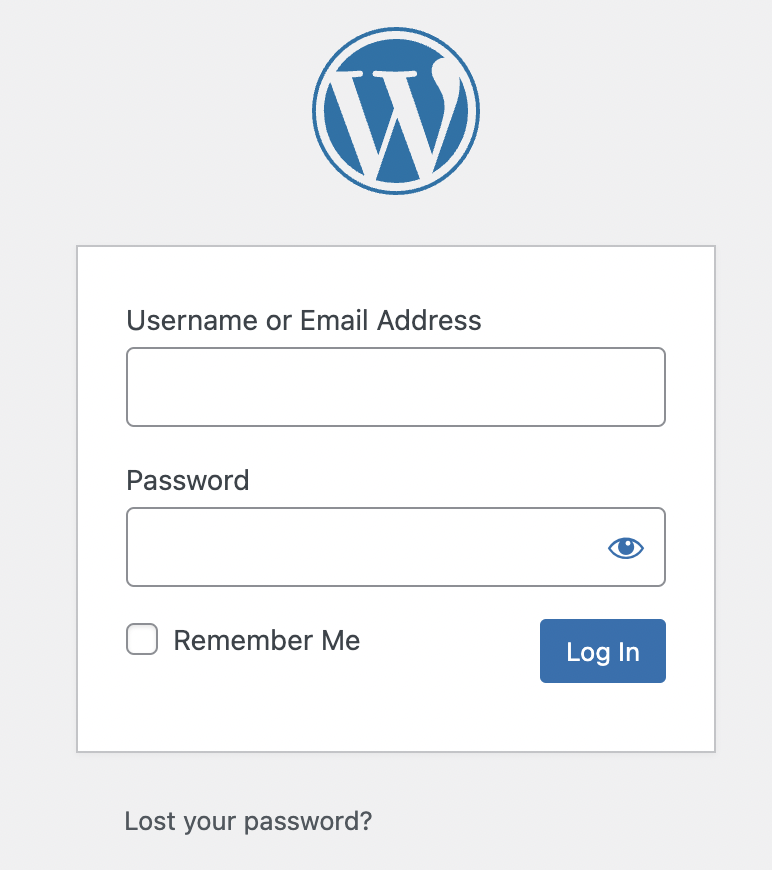
2. In the left-hand menu, select: **Plugins** > **Add New**.\

3. Select **Upload Plugin**.\

4. Select **Choose File**.\

5. Locate and select the plugin .zip file on your local computer and then select **Open**.
6. Select **Install Now**.\

7. *Optional*: Select Activate Plugin if you want the plugin to be active after the installation. If not, you can always activate it later.